Open beta
Install Basaltone on your phone
Choose your phone and follow the steps to install the free beta.
iPhone
Apple distributes beta apps through TestFlight, its own testing app. You install TestFlight only once. It then takes care of installing and updating our app.
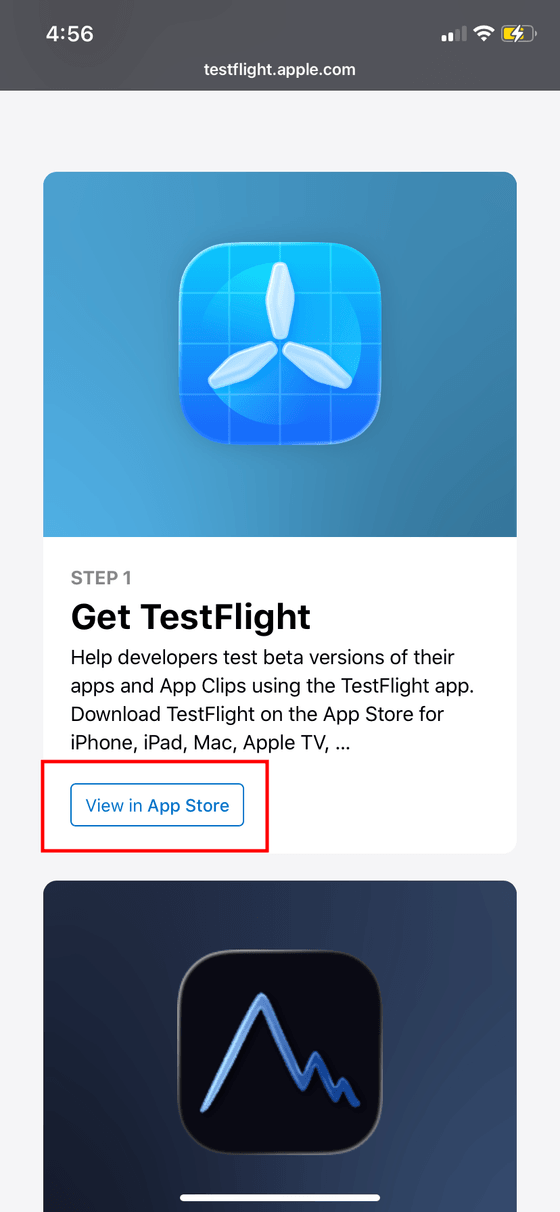
Open the TestFlight page
The link opens a page introducing TestFlight, Apple's testing app. Tap the button that sends you to the App Store.
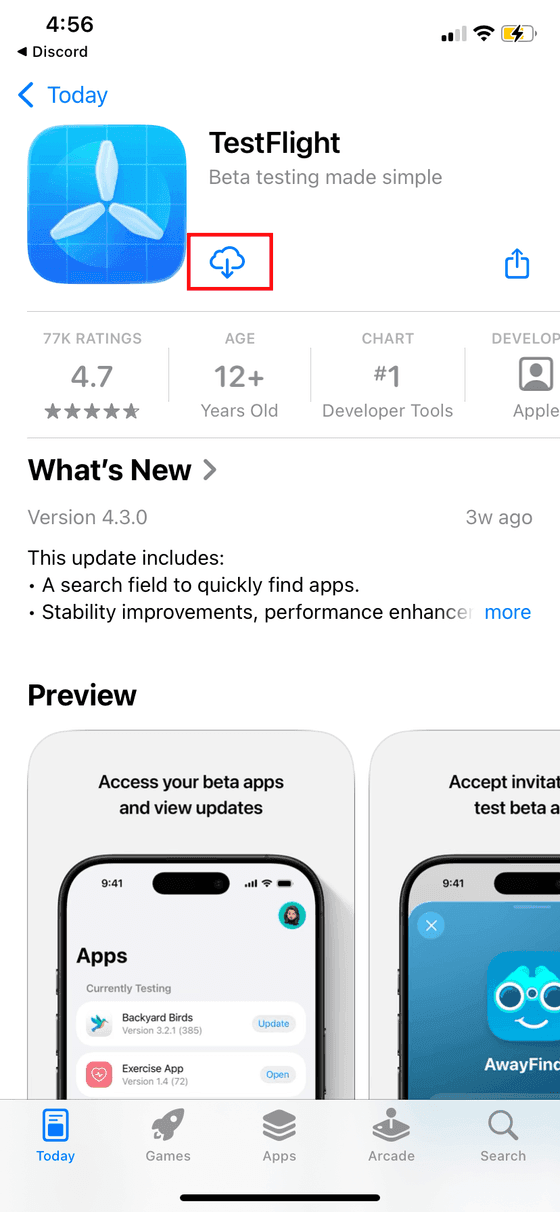
Download TestFlight
Tap the download icon. TestFlight is free; you install it once and keep it for the whole beta.
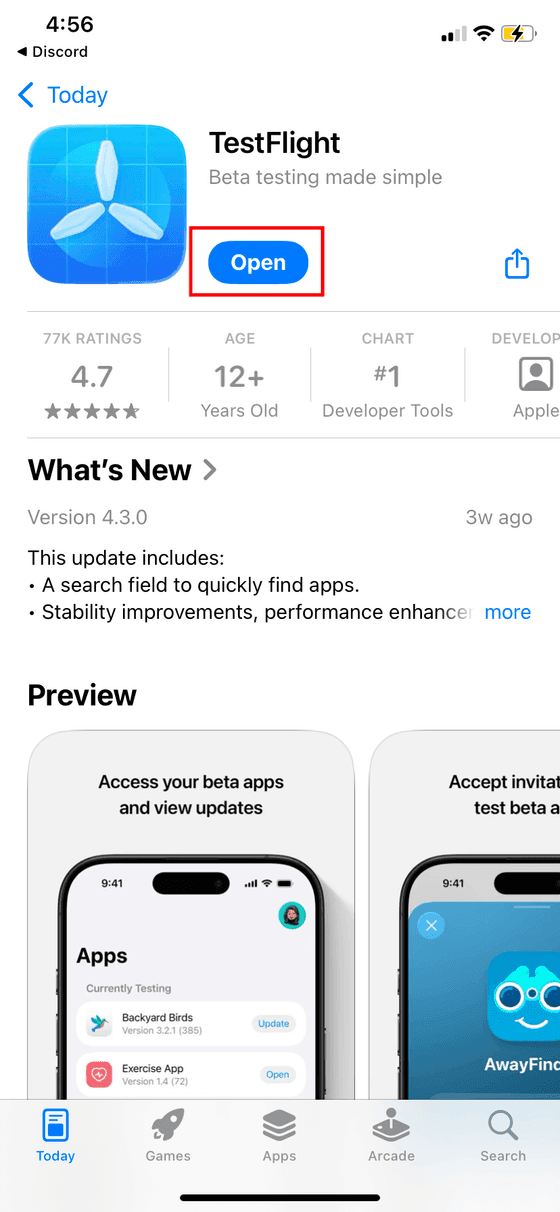
Open TestFlight
Once the download finishes, the same spot turns into an open button. Tap that button.
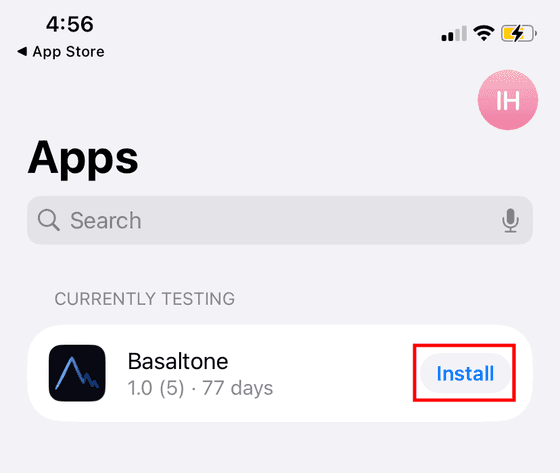
Install Basaltone
TestFlight lists the apps you are testing. Tap the install button to the right of the Basaltone app.
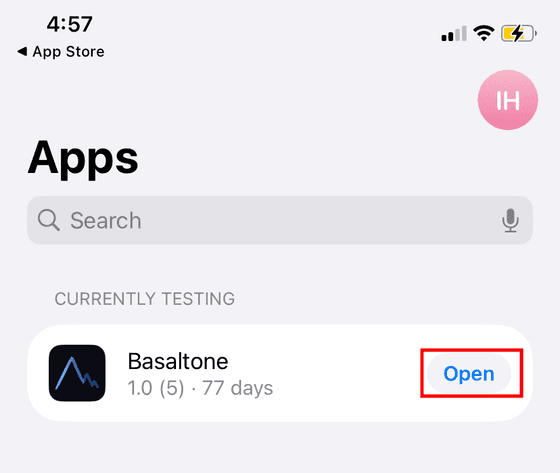
Open Basaltone
The same button turns into an open button once the install finishes. Tap that button.
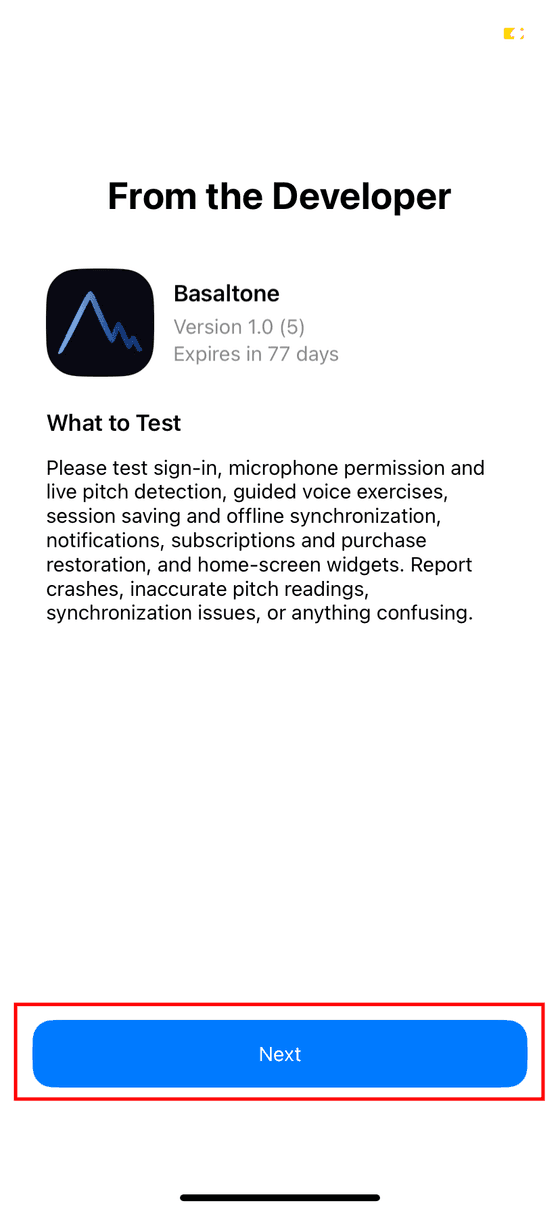
Go past the developer note
TestFlight shows what to test and how long the build stays valid. Tap the button at the bottom to continue.
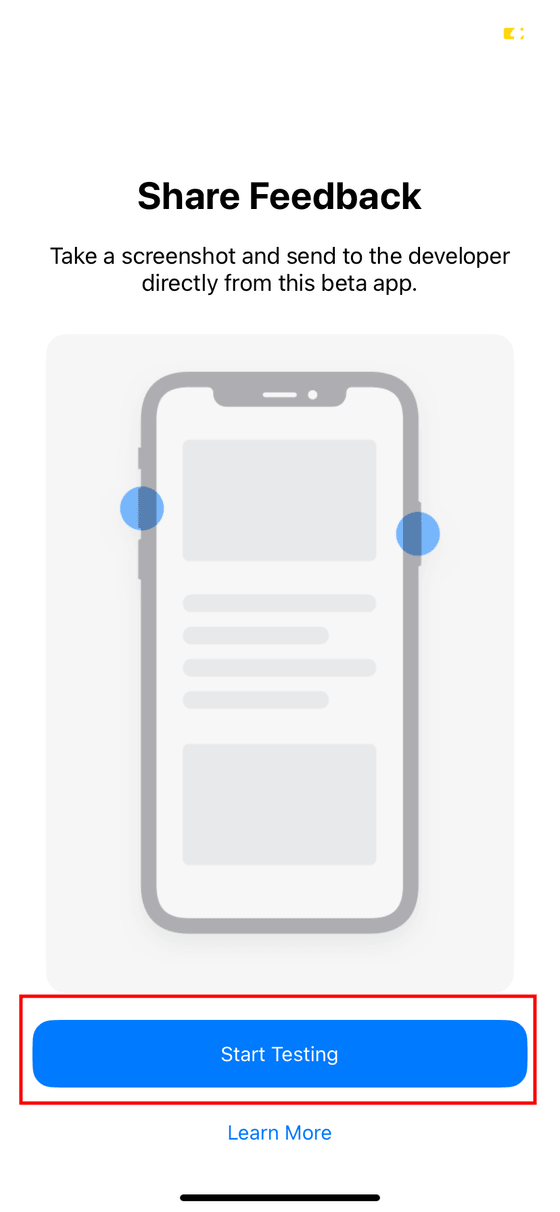
Start testing and sign in
Tap the start button. The app opens: sign in, or create your account, beta access is included.
Android
On Android, there is no extra app to install. You first join the beta group on Google Groups, then follow the steps to download our app from the Play Store. Updates then arrive automatically, as with any other app.
Use the same Google account for the group and your phone's Play Store.
Sign in to Google
Tap the button below to open Google Groups in a new tab, then tap “Sign in”.
Join the beta on Google Groups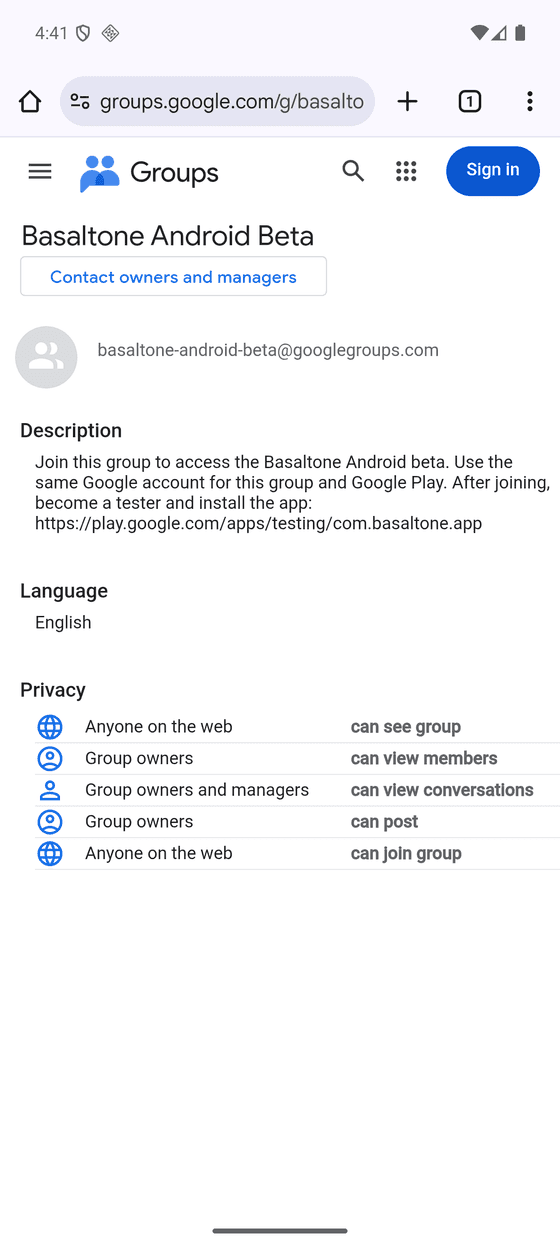
Already signed in? Skip to the next step.
Join the beta
Tap “Join group” in Google Groups to activate your beta access.
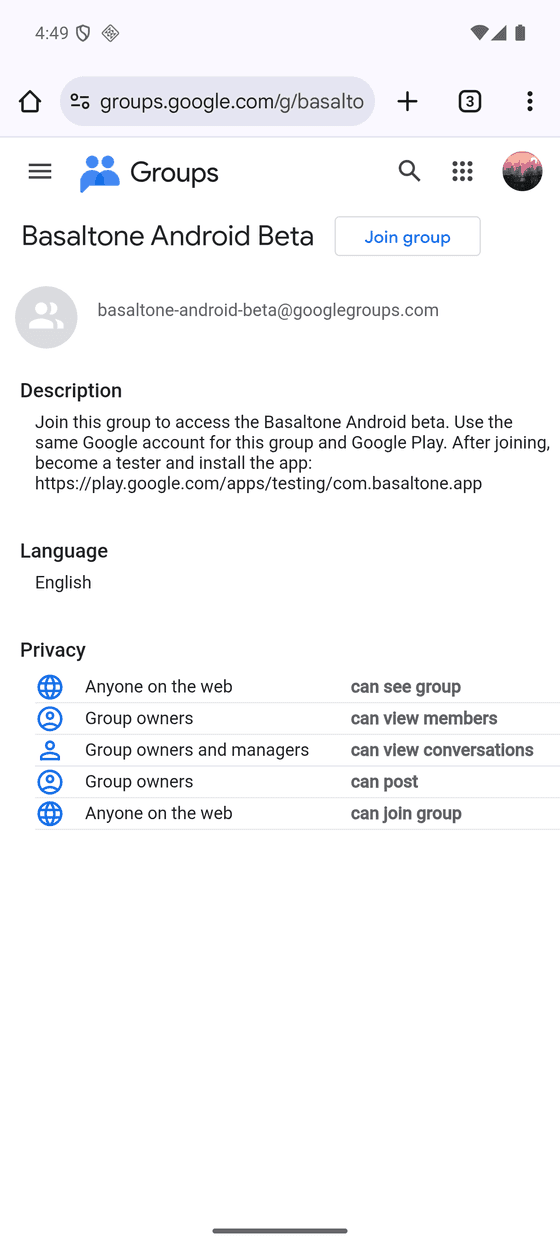
Already in the group? Skip to step 3.
Become a tester
Tap the button below. A Google Play page opens where you can become a Basaltone tester: tap the button on that page to confirm.
Install on Google Play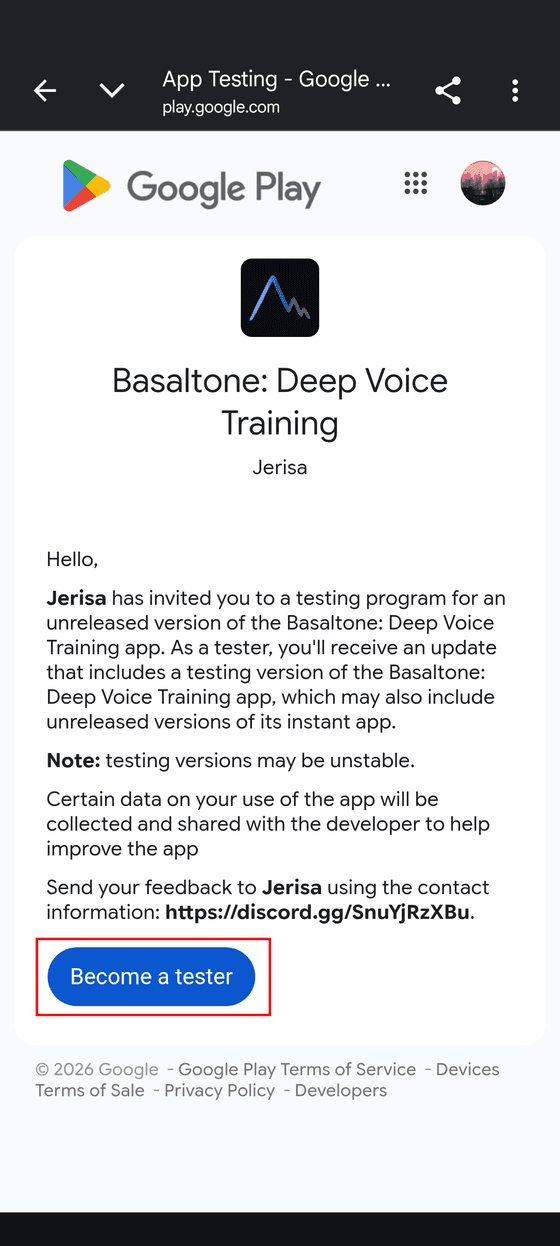
Open the Play Store listing
The page now says “You are a tester”. Tap the download link.
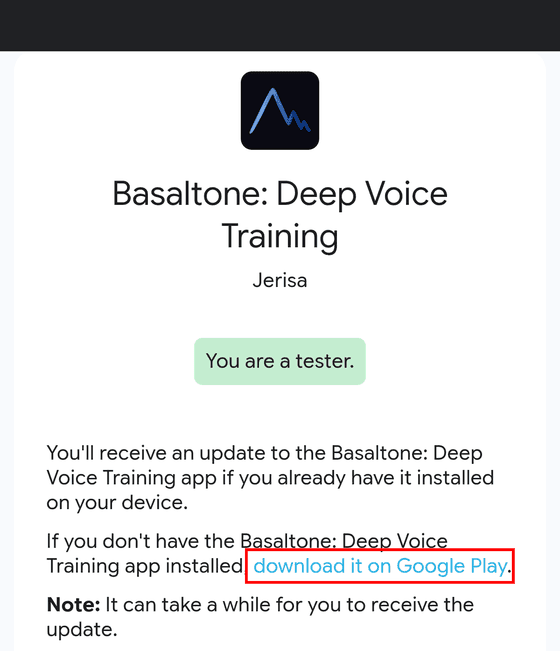
Install Basaltone
Tap “Install”. Note: the listing can take a few minutes to appear.
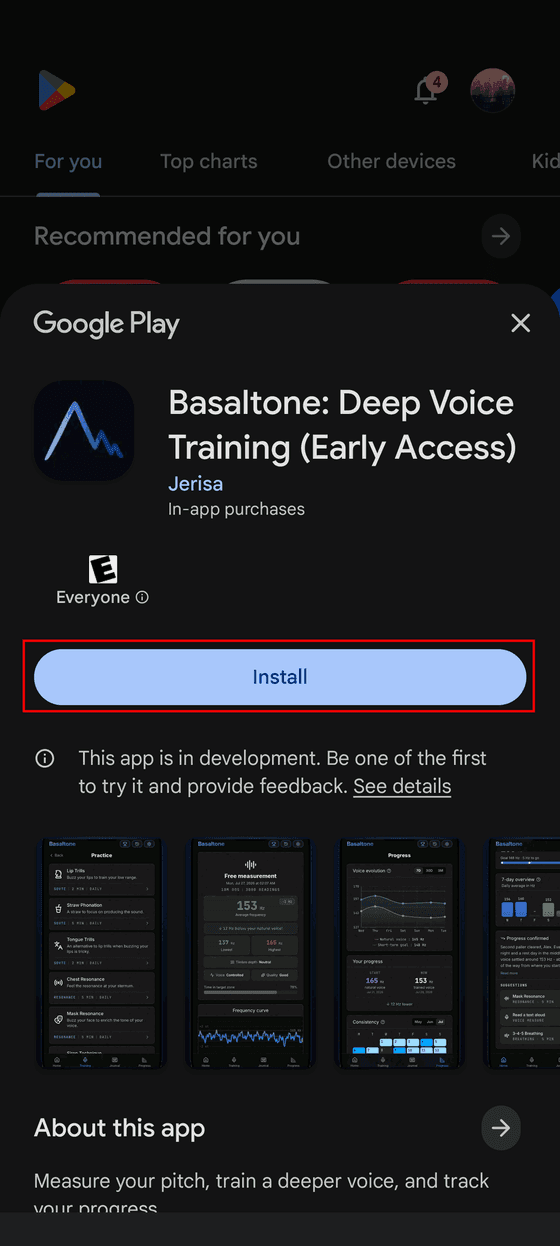
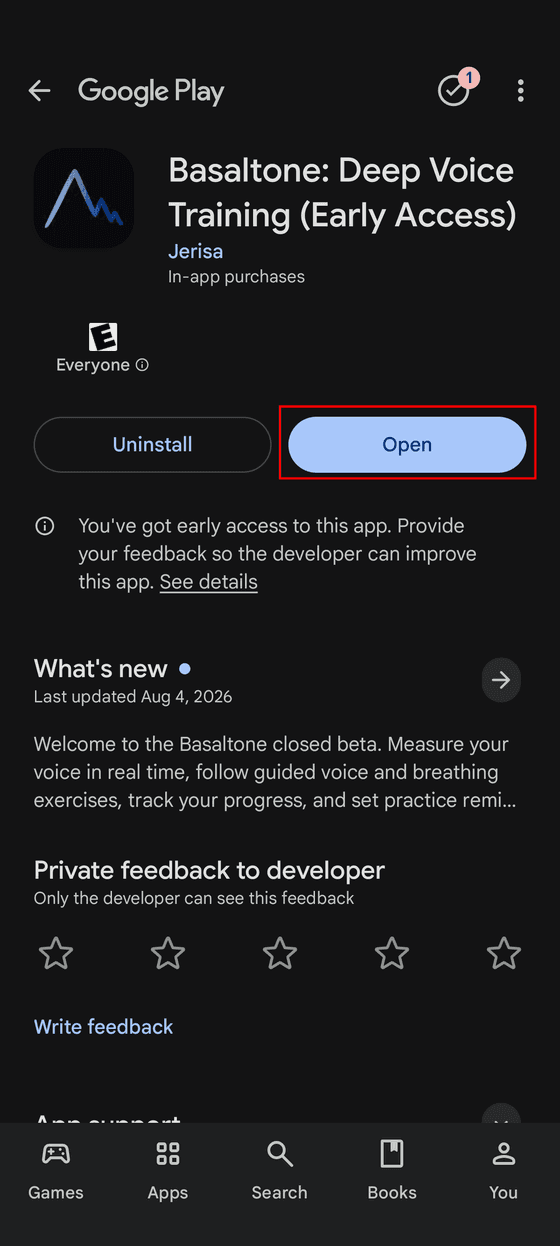
Open the app and sign in
Tap “Open” once the install finishes. Sign in, or create your account: beta access is included.
If Google Play says the app is unavailable, check your Google account, wait a few minutes and try again.
Need help?
If you run into trouble, write to support@basaltone.app and tell us which phone you use and which step blocked you. It helps more than a screenshot of the error alone.